Back to blog home
New AI Behavior Analytics: Track People, Spot Loitering, and Detect Inactivity
by Scott Wisotsky, on November 24th, 2026
Product UpdatesKnowing what’s happening on your site means understanding how people move through it. Where did someone go? Have they been hanging around for too long? Is an area that should be staffed sitting empty?
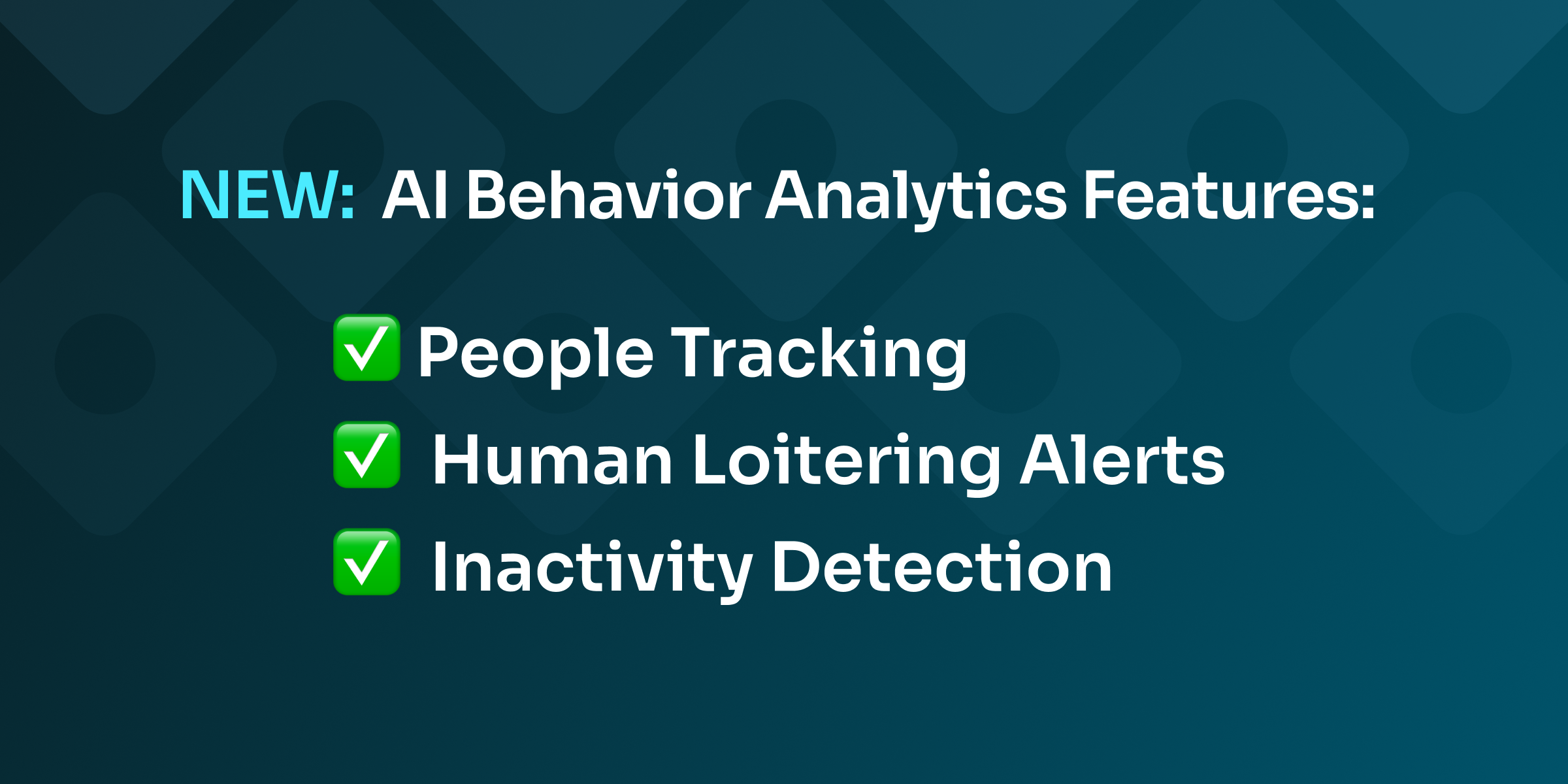
Rhombus cameras now reveal more about how people move through your property, so you can run investigations faster, understand your spaces better, and proactively manage security. Customers with Rhombus Enterprise camera licenses now have three new AI Behavior Analytics features: People Tracking, Human Loitering Alerts, and Inactivity Detection.
These new tools answer those questions, so your team spends less time scrubbing through footage and more time acting on what matters.
People Tracking: See everywhere someone went
When an incident happens, you need the full story, not a single clip. Until now, that meant reviewing each camera within a time window and manually stitching the footage together.
People Tracking reduces that to a few clicks. Select a person of interest, and the Rhombus Console pulls footage from every camera they appeared on within your chosen time frame.
You can also follow their movement on a floor plan view, with lines tracing the path they took through your site. When you’re ready to share, you can easily bundle every clip together and send it as an easy-to-review link.
Human Loitering Alerts: Know when someone’s lingering too long
Human Loitering Alerts notify you when someone stays in a specific area of your site longer than they should.
The most common use is identifying people lingering around a property’s perimeter, but this can also work indoors. A doctor’s office, for example, can use this feature to flag when a patient has been sitting in the waiting room too long.
Setup takes only a few seconds:
- Loiter area: Draw the area you want to monitor for loitering (or use the full camera view)
- Loiter threshold: Set how long someone can stay in that area before you’re alerted (for example, 5 minutes)
- Reset threshold: Determine how long they need to be gone before the timer resets (for example, 1 minute)
Once configured, you’ll get an alert whenever human loitering is detected.
Inactivity Detection: Know when an area goes unattended
Inactivity Detection lets you know when an area that should be active goes quiet, so you can take action. For example, you can use this feature to make sure a front desk stays staffed during busy hours or see when an activity space like a golf bay sits unoccupied.
To set it up, draw a region around the area you want to monitor (or use the full camera view), then set how long it can go without activity before you’re alerted.
You’ll get notified when there’s no activity within the time you set. You can also view a timeline of all inactivity on a chart and click in to see the footage behind it.
Things to know
- Camera compatibility: These features run on newer Rhombus cameras. They aren’t available on older models, including the R1, R2, R3, R100, R120, and R170.
- Human only detection: Inactivity Detection, Human Loitering Alerts, and People Tracking are all designed for human behavior only. These are not designed to track other types of motion, machine movements, or vehicles.
- Uniformed environments: People Tracking and Human Loitering Alerts may be less accurate in areas where everyone wears an identical uniform.
Getting started
All three features are available now for Rhombus customers with Enterprise Camera Licenses. Here’s where to turn each one on in the Rhombus Console:
- People Tracking: Open Manage events this camera tracks to toggle on and configure People Tracking.
- Inactivity Detection and Human Loitering Alerts: Go to More Controls > Region Setup to configure inactivity regions and alerts. Then go into Alerts to configure an alert policy and start receiving notifications.
Request a demo to learn more about Rhombus and our advanced suite of physical security AI analytics tools.
%20--%3e%3csvg%20version='1.1'%20id='Layer_1'%20xmlns='http://www.w3.org/2000/svg'%20xmlns:xlink='http://www.w3.org/1999/xlink'%20x='0px'%20y='0px'%20viewBox='0%200%20110%20110'%20style='enable-background:new%200%200%20110%20110;'%20xml:space='preserve'%3e%3cstyle%20type='text/css'%3e%20.st0{fill:url(%23SVGID_1_);}%20%3c/style%3e%3cg%3e%3clinearGradient%20id='SVGID_1_'%20gradientUnits='userSpaceOnUse'%20x1='25.325'%20y1='766.725'%20x2='84.725'%20y2='707.325'%20gradientTransform='matrix(1%200%200%201%200%20-682)'%3e%3cstop%20offset='0'%20style='stop-color:%23006F94'/%3e%3cstop%20offset='1'%20style='stop-color:%2300C1DE'/%3e%3c/linearGradient%3e%3cpath%20class='st0'%20d='M106.9,47.5L62.5,3.1c-4.1-4.1-10.9-4.1-15,0L3.1,47.5c-4.1,4.1-4.1,10.9,0,15l44.4,44.4%20c4.2,4.2,10.9,4.2,15.1,0L107,62.5C111,58.4,111,51.6,106.9,47.5z%20M55.5,71.2c-9.4,0.3-17-7.3-16.7-16.7C39.1,46,46,39.1,54.5,38.8%20c9.3-0.3,17,7.3,16.7,16.7C70.9,64,64,70.9,55.5,71.2z'/%3e%3c/g%3e%3c/svg%3e)
Related Articles